---
layout: page_v2
title: Prebid Mobile Rendering Modules
description: Prebid Mobile Rendering Modules architecture
sidebarType: 3
---
# AdMob Setup
This document outlines how to set up [AdMob](https://admob.google.com/home/) for Prebid Mobile. See the appropriate integration method [iOS](/prebid-mobile/modules/rendering/ios-sdk-integration-admob.html#rendering-and-tracking)/[Android](/prebid-mobile/modules/rendering/android-sdk-integration-admob.html#rendering-and-tracking)) document for information about rendering and tracking.
## Mediation Group Setup
### Step 1: Create Mediation Group
In your AdMob account go to `Mediation` and click on `Create Mediation Group`:
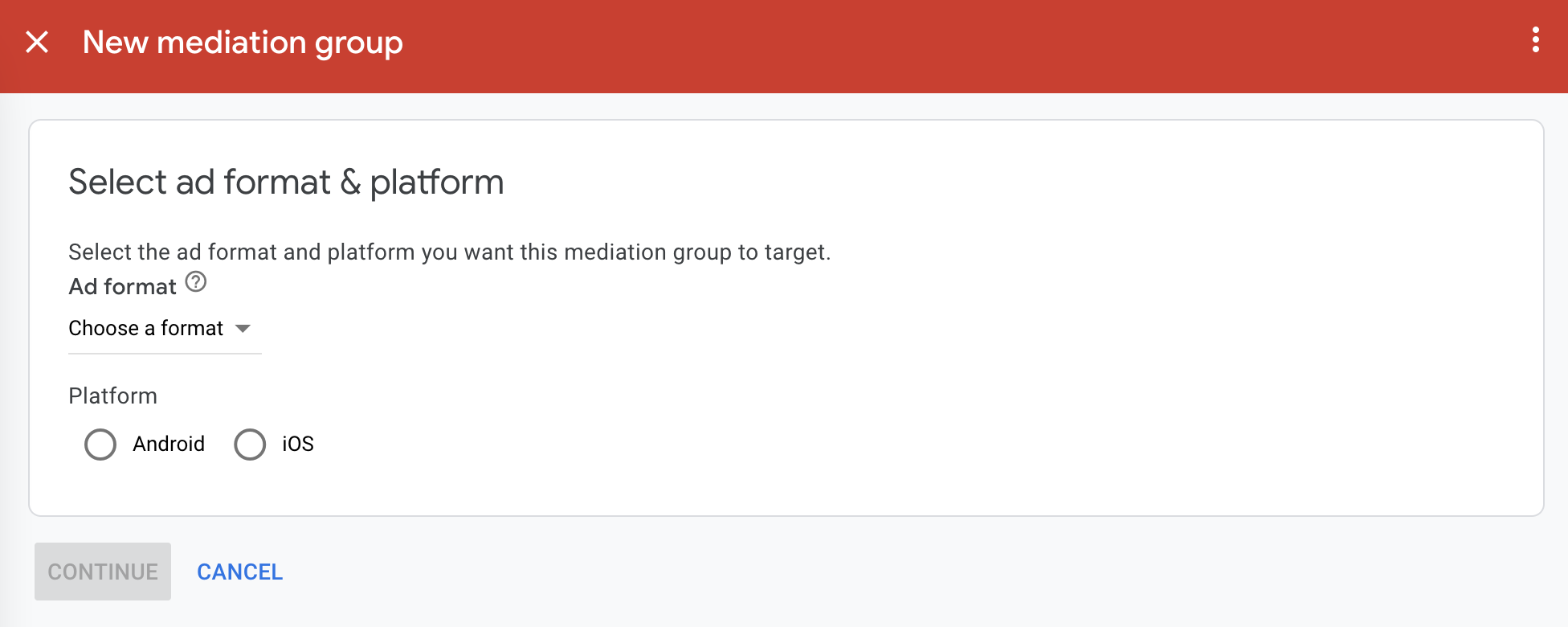 Choose one of the ad formats:
- Banner
- Interstitial
- Native Advanced
- Rewarded interstitial
Choose a platform - iOS or Android.
Press `CONTINUE`. Then set the name for the mediation group and other properties:
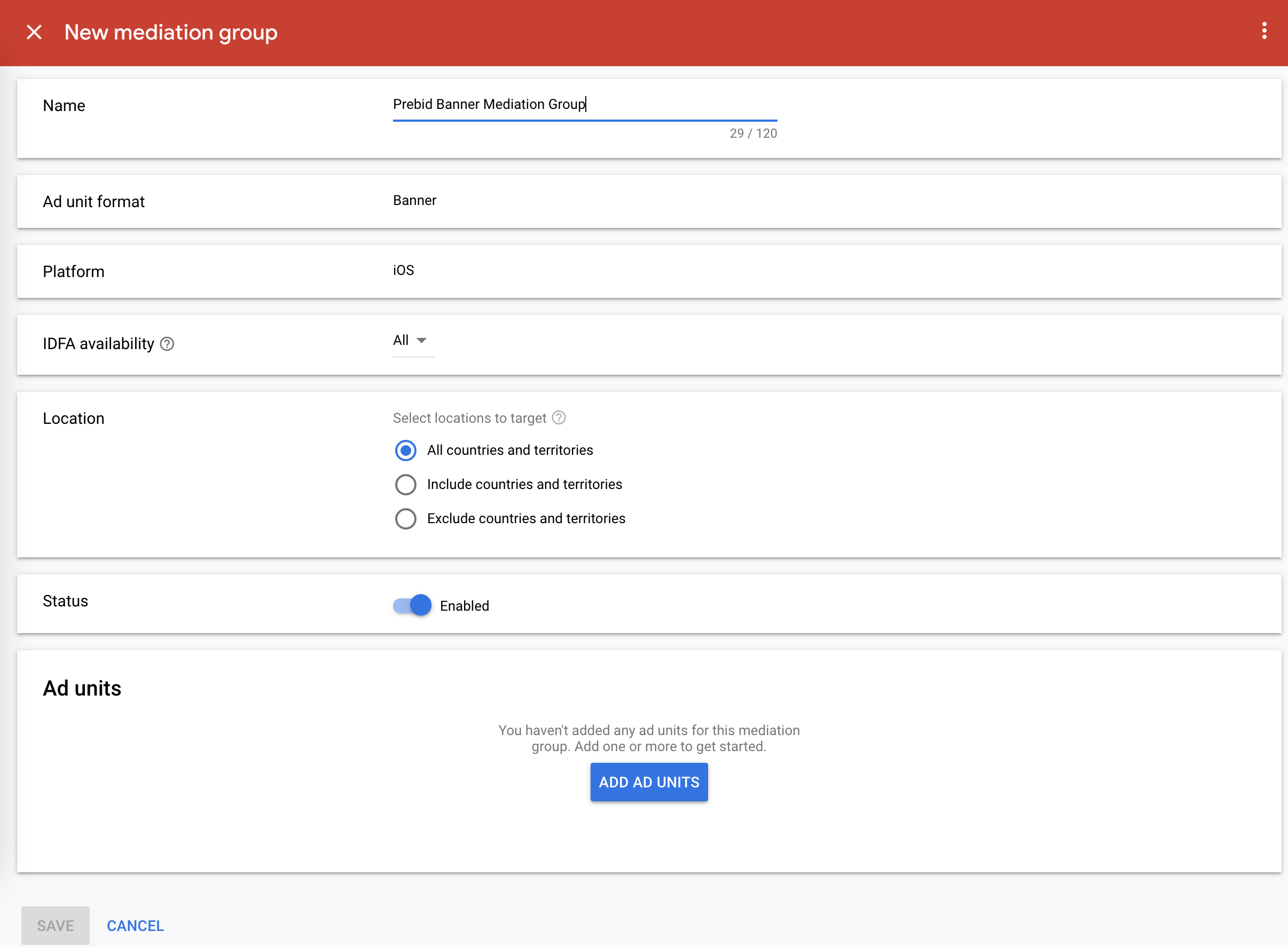 Press `ADD AD UNITS` and select the target items in the modal dialog:
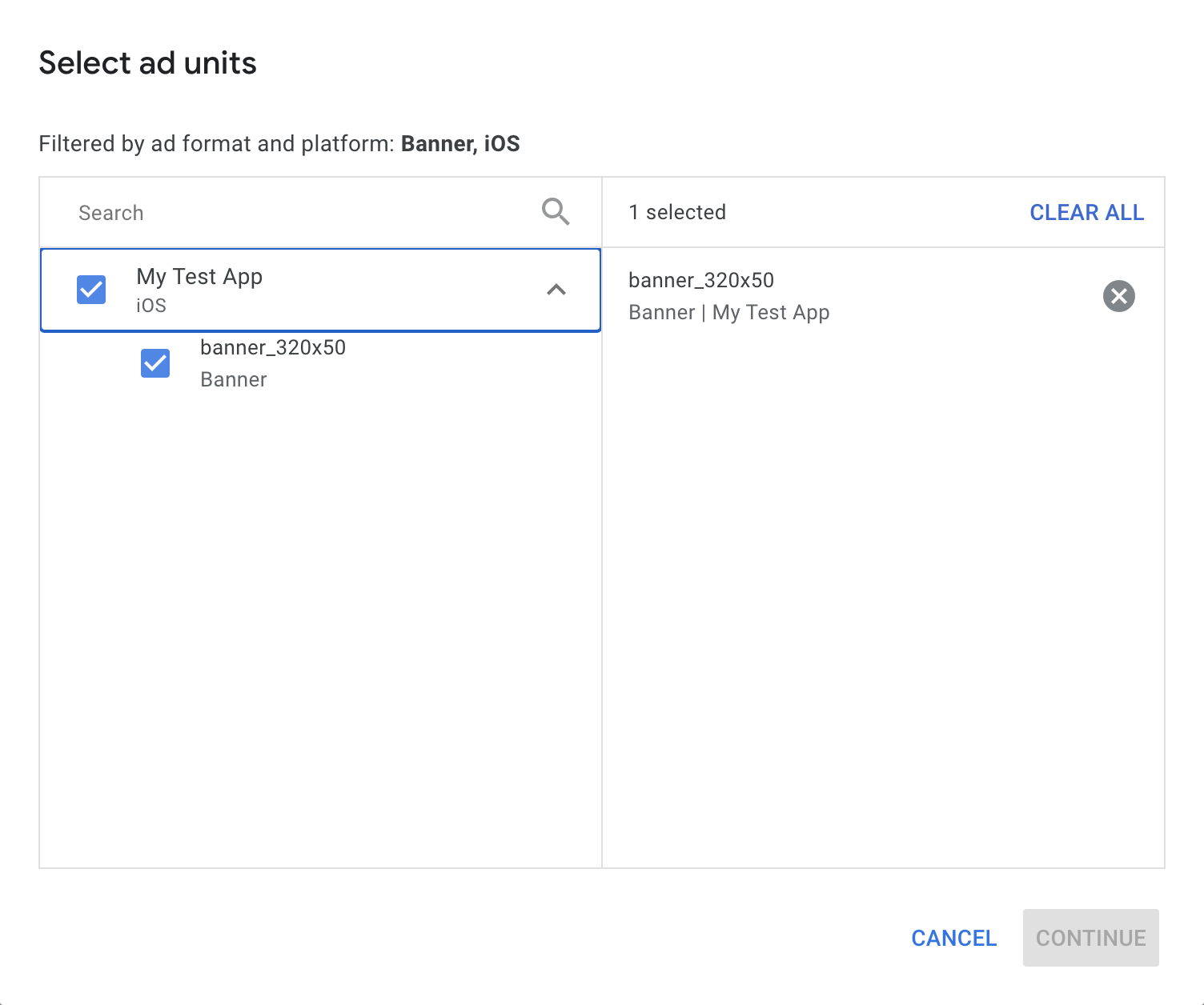 Press `DONE`. And move to the next step.
### Step 2: Add Custom Events
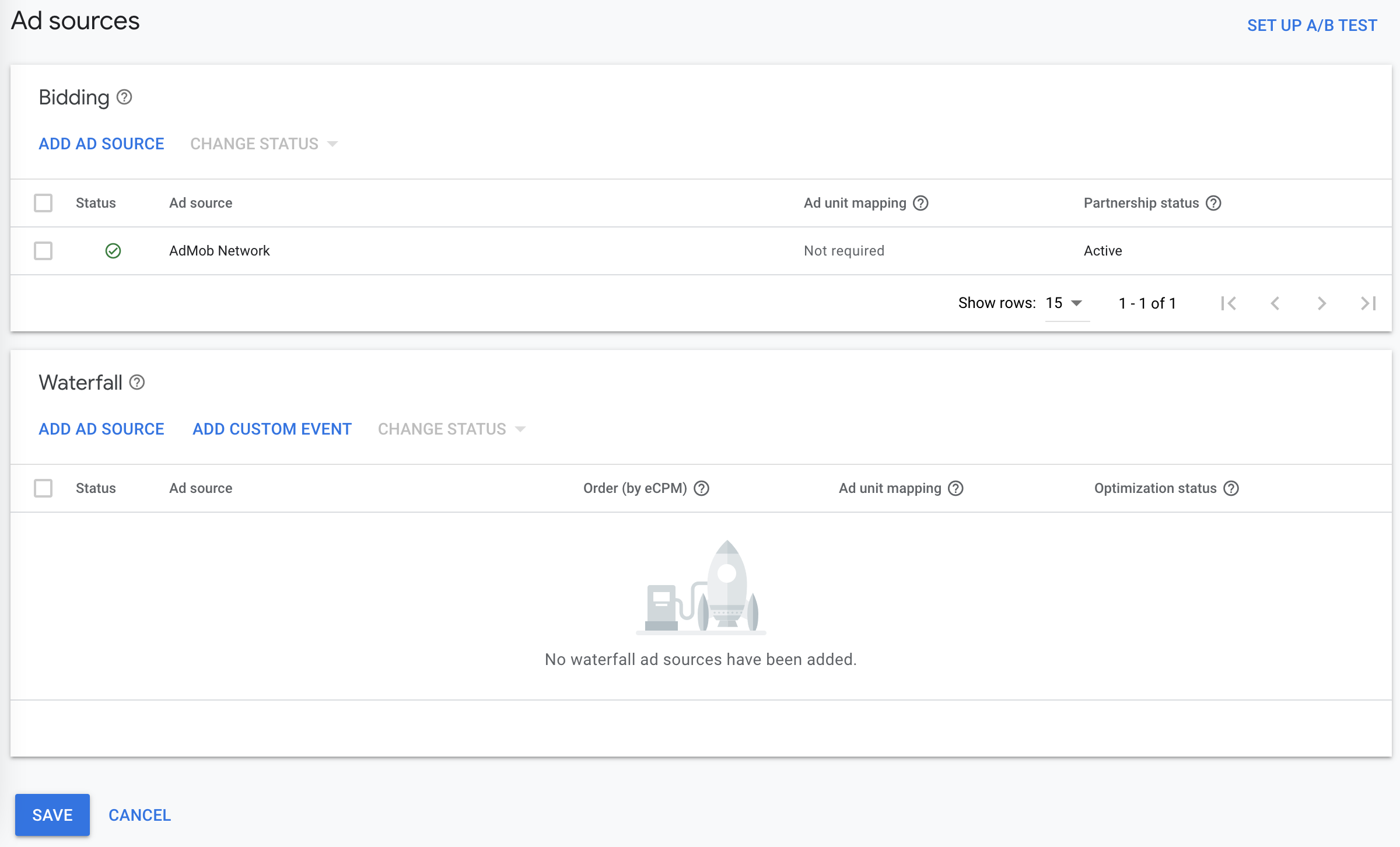 Now you have to add custom events for possible bid prices. Follow the [price granularity](/adops/price-granularity.html) guide to determine how many entries you need.
Press `ADD CUSTOM EVENT`:
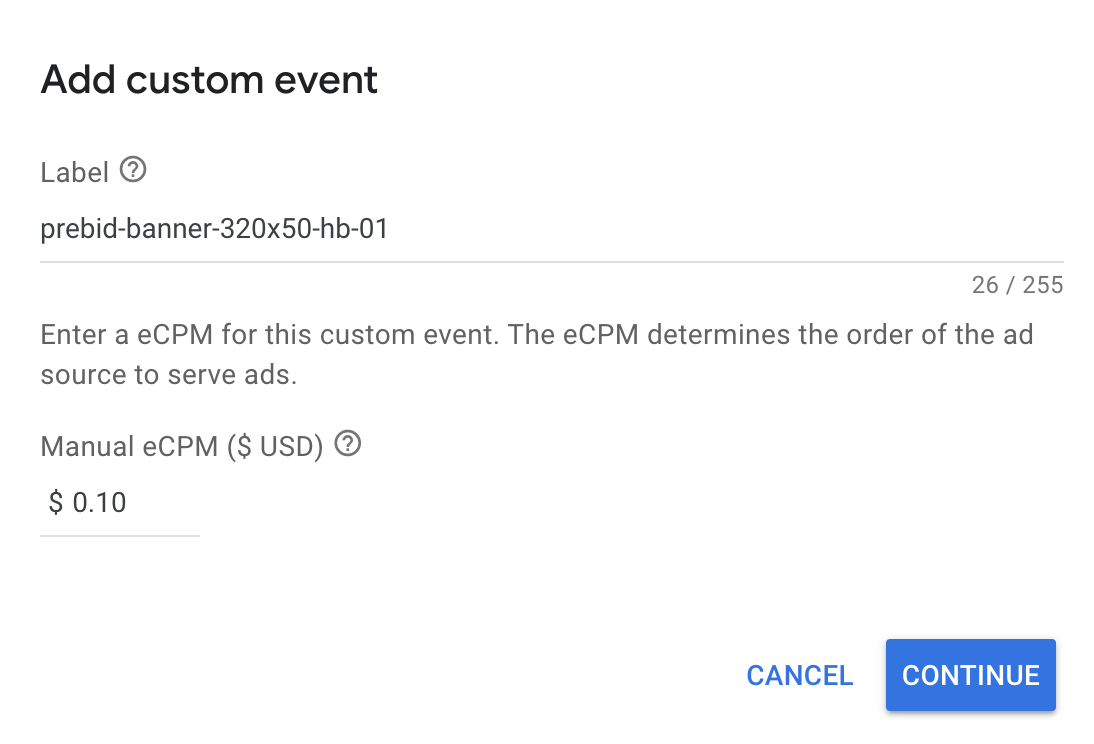 Set the `Label` and `eCPM` for the custom event. Press `CONTINUE`.
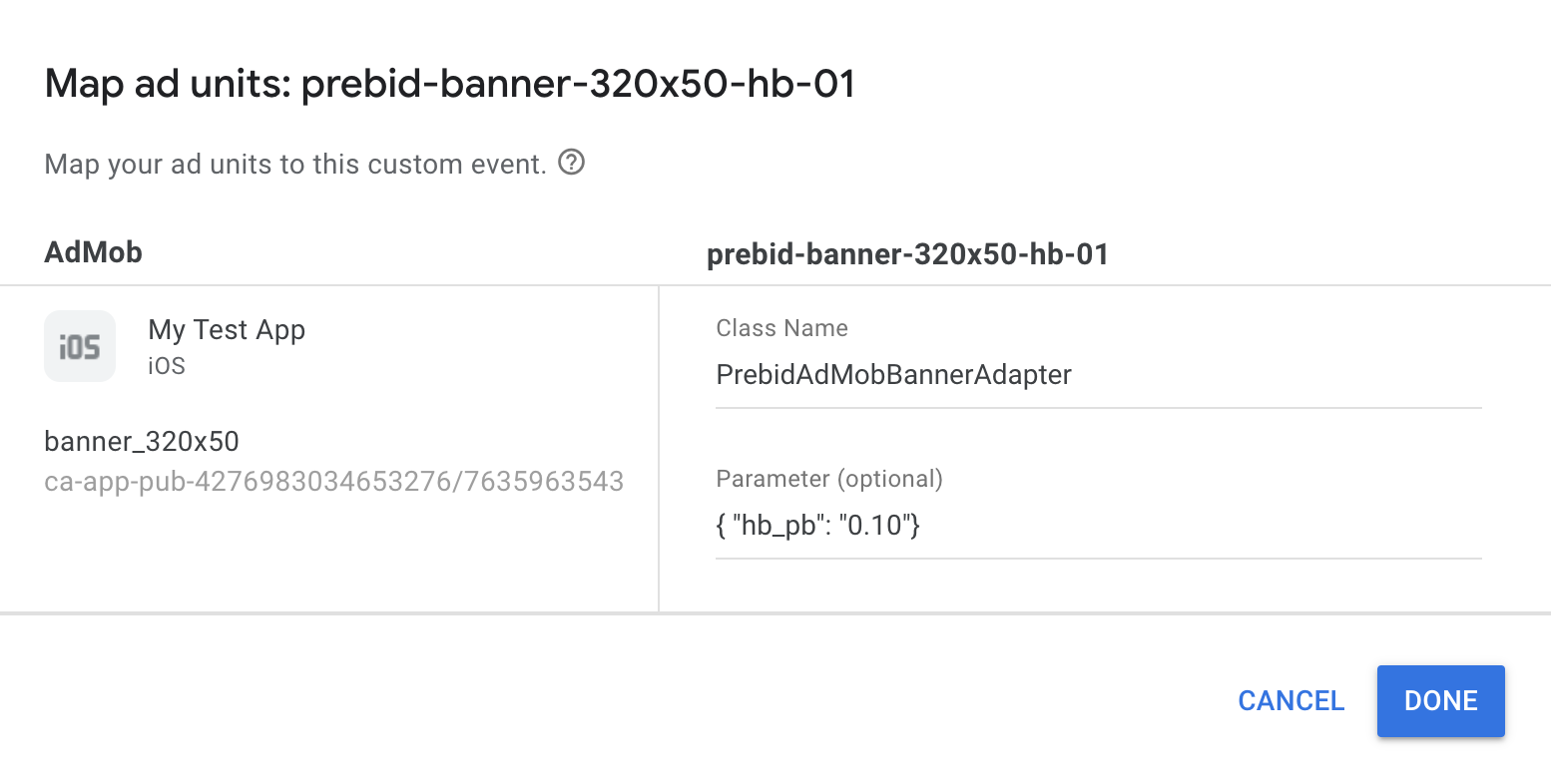 The fields in this dialog are critical for the proper integration:
- `Class Name` is a name of respective adapter.
- Banner:
- iOS: `PrebidAdMobBannerAdapter`
- Android: `org.prebid.mobile.admob.PrebidBannerAdapter`
- Interstitial Display:
- iOS: `PrebidAdMobInterstitialAdapter`
- Android: `org.prebid.mobile.admob.PrebidInterstitialAdapter`
- Interstitial Video:
- iOS: `PrebidAdMobVideoInterstitialAdapter`
- Android: `org.prebid.mobile.admob.PrebidInterstitialAdapter`
- Rewarded:
- iOS: `PrebidAdMobRewardedVideoAdapter`
- Android: `org.prebid.mobile.admob.PrebidRewardedAdapter`
- Native:
- iOS: `PrebidAdMobNativeAdapter`
- Android: `org.prebid.mobile.admob.PrebidNativeAdapter`
- `Parameter` is a keywords for the current ad source. **Important**: make sure that the price of the ad source is the same as the price in this keyword. For example:
```json
{"hb_pb":"0.10"}
```
Prebid SDK will compare the keywords in the winning bids with keywords provided in the `Parameter` fields.
{: .alert.alert-warning :}
The adapter will render the winning bid only if the bid's targeting keywords contain `all` keywords from the Parameter field.
Press `DONE` and repeat the adding of the custom events for all needed prices.
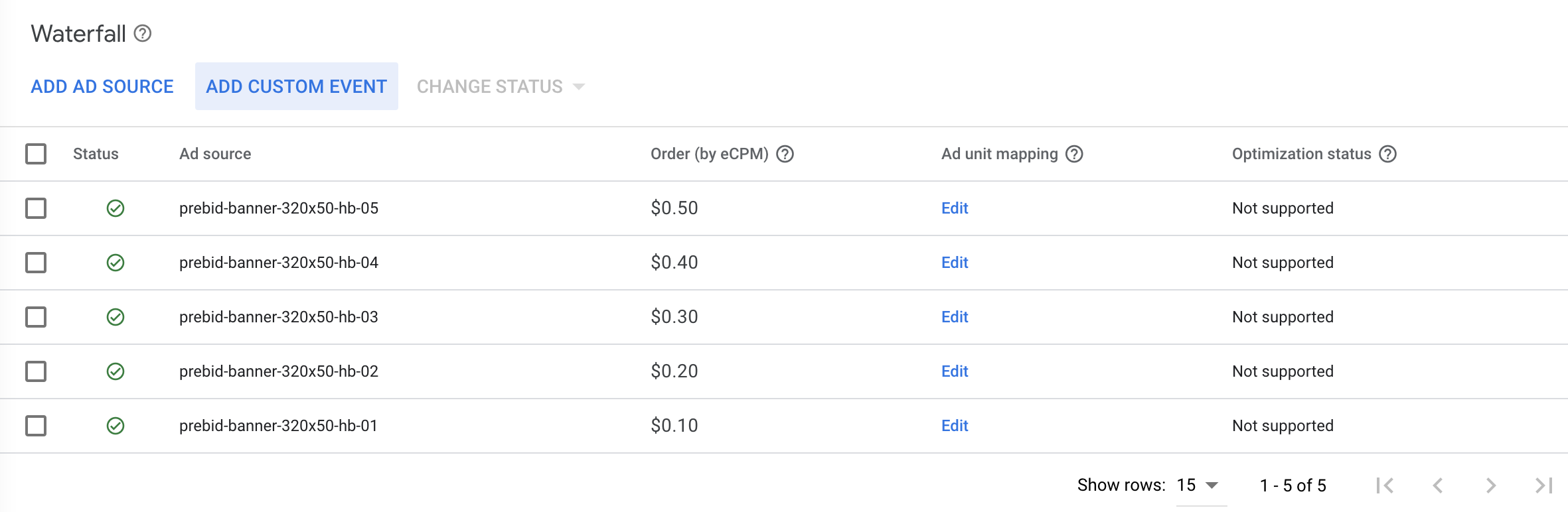 Once you add all needed custom events - press `DONE`. The Mediation Group is ready to serve the prebid demand to your app.
## Further Reading
- [Prebid Mobile Overview](/prebid-mobile/prebid-mobile)
- Prebid Mobile Admob Integration Method for [iOS](/prebid-mobile/modules/rendering/ios-sdk-integration-admob.html), [Android](/prebid-mobile/modules/rendering/android-sdk-integration-admob.html)