---
layout: page_v2
title: GAM Step by Step - Banner/In-Renderer/AMP/Native Creatives
head_title: GAM Step by Step - Banner/In-Renderer/AMP/Native Creatives
description: Set up Banner and In-Renderer creatives for Prebid in Google Ad Manager.
pid: 2
sidebarType: 3
---
# GAM Step by Step - Banner/In-Renderer/AMP Creatives
{: .no_toc}
- TOC
{:toc}
This page walks you through the steps required to create banner and In-Renderer (formerly known as "outstream") creatives to attach to your Prebid line items in Google Ad Manager (GAM). This same process can cover native creatives if you've chosen the in-adunit or external native template options. If you're using GAM's native
design tool, you'll need to follow the [GAM native](/adops/gam-native.html) page.
{: .alert.alert-success :}
For complete instructions on setting up Prebid line items in Google Ad Manager, see [Google Ad Manager with Prebid Step by Step](/adops/step-by-step.html).
{: .alert.alert-info :}
Note that for Prebid Mobile, the In-Renderer video scenario is covered by video line items. See the [video creative reference](/adops/mobile-rendering-gam-line-item-setup.html) for details.
## Overview
This document describes how to implement the 3rd Party HTML creatives in GAM for banner/etc. See the [creative considerations](/adops/creative-considerations.html) reference for an overview.
## Prebid Universal Creative
This procedure works for both Prebid.js and Prebid Mobile, with a few differences noted below.
1. In GAM, select **Delivery** > **Creatives**.
2. Under the **Display creatives** tab, click **New Creative**.
3. Select your advertiser, then click **Third party**.
4. Enter a **Name** for your creative. For example, `Prebid – banner – 1x1 - 1`.
5. Enter a **Target ad unit size** of `1x1`. This allows the creative to serve on all inventory sizes.
{: .alert.alert-warning :}
These instructions assume you're using the Prebid Universal Creative (PUC) after v1.15 that supports the separate `banner.js` file. See the [Prebid Universal Creative](/overview/prebid-universal-creative.html) documentation for alternate approaches.
{: .alert.alert-danger :}
**AMP**: If you choose to bypass the PUC for AMP or Prebid Mobile, Prebid Server analytics will not work.
{:start="6"}
6. Select **Standard** as the **Code type**.
{: .alert.alert-info :}
**AMP**: If you are using AMP, you should still select **Standard** as the code type. The “AMP” option is for AMPHTML hosted by a 3rd party.
{:start="7"}
7. Enter one of the scripts shown below, depending on whether Prebid is configured to send all bids or only the top price bid.
**Send All Bids Configuration**
{: .alert.alert-warning :}
Be sure to replace BIDDERCODE with the appropriate bidder. For example, if the bidder code is `PBbidder`, the `adid` would be `%%PATTERN:hb_adid_PBbidder%%`.
Replace "PUCFILE" with:
- Prebid.js: "%%PATTERN:hb_format%%.js"
- Prebid Mobile: "creative.js"
Replace "VERSION" with:
- Prebid.js 10.11.0 or later: "%%PATTERN:hb_ver%%"
- Otherwise, a specific PUC version.
```html
```
{: .alert.alert-info :}
Note: the `mobileResize` parameter is a workaround to a bug in the Google Mobile Ads SDK. The Prebid SDK uses the existence of the "hb_size" string that's provided in %%PATTERN:TARGETINGMAP%%, but this bidder-specific version of the creative doesn't utilize the TARGETINGMAP, so the value is added here. The important part is the value that contains `hb_size:`.
{: .alert.alert-danger :}
Warning: Be sure none of the attribute names are longer than 20 characters. See [Send All Bids Key Value Pairs](/adops/send-all-vs-top-price.html#key-value-pairs) for more information.
**Send Top Price Bid Configuration**
In top-price mode, you can make use of the GAM `TARGETINGMAP` feature instead of listing out each attribute.
Replace "PUCFILE" with:
- Prebid.js: "%%PATTERN:hb_format%%.js"
- Prebid Mobile: "creative.js"
Replace "VERSION" with:
- Prebid.js 10.11.0 or later: "%%PATTERN:hb_ver%%"
- Otherwise, a specific PUC version.
```html
```
{:start="8"}
8. Select whether to **Serve into a SafeFrame**. See [Creative Considerations](/adops/creative-considerations.html) for more on using SafeFrames.
{: .alert.alert-info :}
**AMP**: For AMP, you must select **Serve into a SafeFrame**.
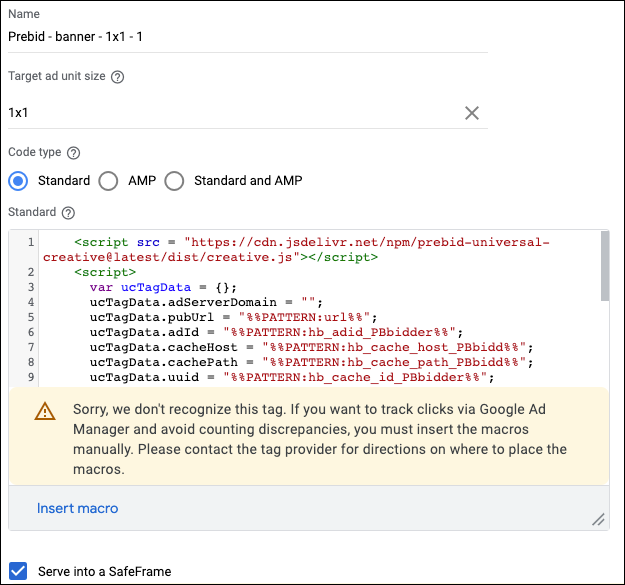
Your creative settings will look something like this. In this example we're assuming a Send All Bids configuration, and we’ve replaced BIDDERCODE with the code for our bidder, PBbidder. (Notice that some of the key names have been truncated to adhere to the GAM 20-character key length limit.)
{: .alert.alert-info :}
Note: You can ignore the “Sorry, we don’t recognize this tag” warning. GAM doesn’t have built-in macros for Prebid and so doesn’t recognize them. The ad tag will still work correctly.
{:start="9"}
9. If you're using jsdelivr, set your **Associated ad technology provider**:
{% include /adops/adops-creative-declaration.html %}
{:start="10"}
10. Click **Save and preview**.
## Prebid Dynamic Creative
The process for the Prebid Dynamic Creative is exactly the same except
that the body of the creative is different. In Step 7 above, instead of
using the creative body that loads the PUC:
For Send-Top-Bid setups, copy the [dynamic creative](https://github.com/prebid/Prebid.js/blob/master/integrationExamples/gpt/x-domain/creative.html) from github and paste it into GAM.
For Send-All-Bids setups, copy the [dynamic creative](https://github.com/prebid/Prebid.js/blob/master/integrationExamples/gpt/x-domain/creative.html) from github and paste it into GAM. Then replace `%%PATTERN:hb_adid%%` with `%%PATTERN:hb_adid_BIDDERCODE%%`. For example, if the bidder code is `PBbidder`, the `adid` would be `%%PATTERN:hb_adid_PBbidder%%`. Remember to truncate the whole hb_adid_BIDDERCODE to 20 characters.
## Further Reading
- [Google Ad Manager with Prebid Step by Step](/adops/step-by-step.html)
- [Send All Bids vs Top Price](/adops/send-all-vs-top-price.html)
- [Prebid Universal Creative](/overview/prebid-universal-creative.html)
- [Creative Considerations](/adops/creative-considerations.html)
- [Ad Ops Planning Guide](/adops/adops-planning-guide.html)